Introduction:
Zoom Player Professional is a smart DVD Front-End. It can play DVDs from your DVD drive or from your Hard Disk as long as there are
DVD Audio and Video decoders installed on your system. Please note that the
Standard version of Zoom Player does not support DVD Playback.
DirectX:
Zoom Player requires that you have DirectX installed. The minimum version is 8.1, but some functionality requires the latest version.
It is highly recommended that you have the latest version installed. You can download DirectX
here.
Obtaining the Decoders:
Zoom Player does not ship with decoders, hence its relatively low price point. Most Computers, DVD Drives and Display Cards already
ship with DVD Decoders, so in most likelihood, your computer already has one. If it doesn't, there are several open-source solutions.
You can find the OpenSource Video Decoder here,
the AC3 Audio Filter here and the DScaler Project download
page here (DScale is both a Video and an Audio decoder).
Some of these decoders may not contain CSS decryption code. For such cases, you may need to have
AnyDVD running in the background for DVD Playback to work.
Configuring Zoom Player with your installed Decoders:
To configure Zoom Player, all you need to do is select 3 items:
1. The Video Decoder.
2. The Audio Decoder.
3. The Audio Renderer (Your Sound Device).
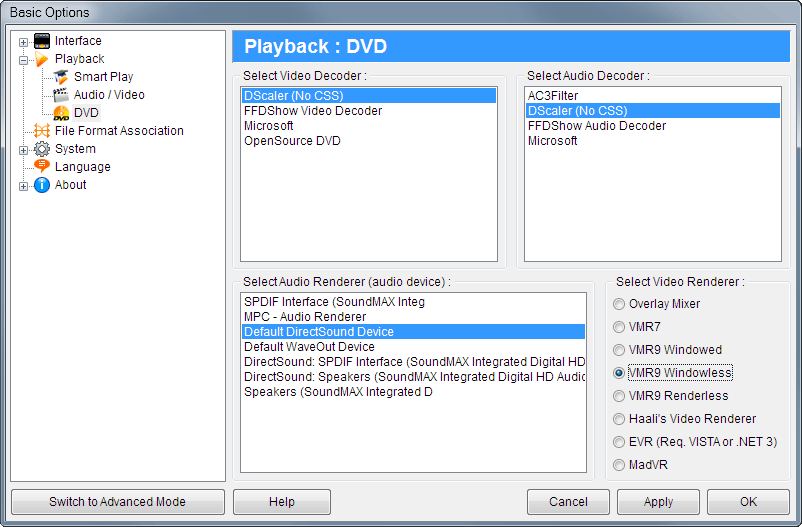
You will notice that certain decoder entries are listed as "No CSS", these may require AnyDVD running in the background to work
with encrypted DVDs (DVDs backed up to your hard disk will not be encrypted and will not require AnyDVD).
As your Audio Renderer, it is recommend you select "Default DirectSound Device" unless you have a special need to select the
non-default device (such as playing DVDs on a special sound card).
Playing the DVDs:
DVDs can be stored in several "states". The original state is on a DVD Disc. In such cases all you need to do in order to play
the disc is switch to DVD Mode (F10) and press play. If you have multiple DVD drives containing DVD Discs, you can press Shift+"D"
and select the DVD Drive you want to play.
Another state is a DVD Image file (usually a 4gb file with an ".IMG" file extension). To play such files, you need to install a
free image-mounting tool called Daemon Tools. Daemon Tools allows you
to create a Virtual DVD-Drive and mount the image file onto that drive so that it will appear as if a DVD Disc has been inserted
into that drive. Once you mount the image, all you need to do is tell Zoom Player to open that drive.
The last state is a complete DVD File Copy. This is a state where you have a complete DVD File Structure within a directory on
your hard drive. Please note that in order for a DVD File Structure to be valid, you MUST have all the files on the original DVD
backed up. Partial file backup will not work.
To play a DVD File Structure, you can either open the "VIDEO_TS.IFO" file in the Zoom Player Open File dialog, or open the entire
directory using Zoom Player's Open Directory function (Alt+"D").
Running a DVD Media Center:
People who have their own Home Theater PC often elect to backup all their DVD Titles to a local hard drive so that they
can play their DVDs without having to switch discs. A popular tool to backup your DVD collection to your local drive is
DVD Decrypter.
DVD Decrypter can backup your DVDs in either File Mode or to an Image file which you can later mount using Daemon Tools.
In either mode, you can use Zoom Player to play the local DVD Images using the instructions detailed above. Please note
that if you're using File Mode, you must select all the files on the DVD, otherwise the DVD may not play.
Troubleshooting: The Overlay Surface (and Multi-Monitor support)
Your display card usually has a special hardware called an "Overlay Surface", which is a requirement in DVD Playback.
The Overlay Surface is only supported on the primary monitor. If you are trying to play a DVD on a secondary monitor,
you may get an error that the video decoder you selected is unable to connect to the "Overlay Mixer" filter.
Some Display Cards allow you to specify which monitor is the primary monitor and thus resolving this issue.
Some Display Cards may require a driver update (especially if you are using the default driver that got installed
along with windows). In these cases, you should visit the manufacturer home page and obtain an updated driver.
Another solution, and this is only for newer Display Cards (cards manufactured during 2002-2003 or later) is to use the "VMR9".
The VMR9 is an updated technology that replaces the need for the Overlay Surface, but it is only available on newer cards installed
with the Latest drivers. You also need DirectX-9c or newer installed.
To enable VMR9 in Zoom Player, you must switch to the "Advanced Options" dialog (bottom-left button on the Options Dialog), go
to the "Playback / DVD - Smart" dialog and select VMR9 as the video renderer. There are several VMR9 modes, VMR9 Windowed
is the most compatible (safe) mode.